
PowerShell Functions
What they are and why they're worth learning

It took me a long time to figure out why I should be using functions. Maybe it was my own issue, or I was reading the wrong things, but I could never crack the difference between a script and a function. "This is a great script, you should turn it into a function”. What?
Then one day, I read about functions again in a book, and suddenly it all clicked in to place. It was a real Eureka moment, so hopefully, I’ll use the right words to get across why you really need to be using functions if you’re using PowerShell. And lets face it, you should be using PowerShell if you do any Windows, Exchange, Azure or Office 365 administration.
Let’s start with turning a super simple script into a super simple function:
#Script:
Get-ChildItem -Path C:\Temp | Sort-Object LastWriteTime -Descending
All the above is doing is getting the files in C:\Temp, and displaying them in order of date created, from newest to oldest. Easy.
Remember, anything in PowerShell preceeded by a ‘#’ is a comment and is not a command.
To make that a function, you do the following:
#Function
function Sort-CTemp {
    Get-ChildItem -Path C:\Temp | Sort-Object LastWriteTime -Descending
}
For best practice, make sure you use approved verbs in your functions.
I gave the function a unique name (Sort-CTemp), and added the script inside the function brackets. Once that’s done, your function is created. In it’s current state, it’s only usable as long as that file is open. Running the command Sort-CTemp will display the contents of your Temp folder, sorted by newest.
PowerShell Profile
To really leverage functions, you want to add them to your profile in PowerShell. Your profile is simply some configuration and commands that you want to load in your session when you open PowerShell. You can find this filepath by running $PROFILE in PowerShell. Anything in here is “ready to go” as soon as you open a PowerShell window.

To add this function to your profile, you can run ‘notepad $PROFILE’ to open that file directly in Notepad. From there, copy-paste your function in, save the file and reload your PowerShell session.
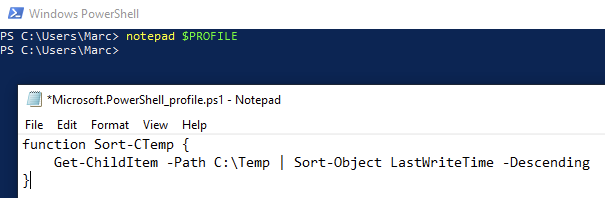
Once you’ve done that, you can run your function in PowerShell:
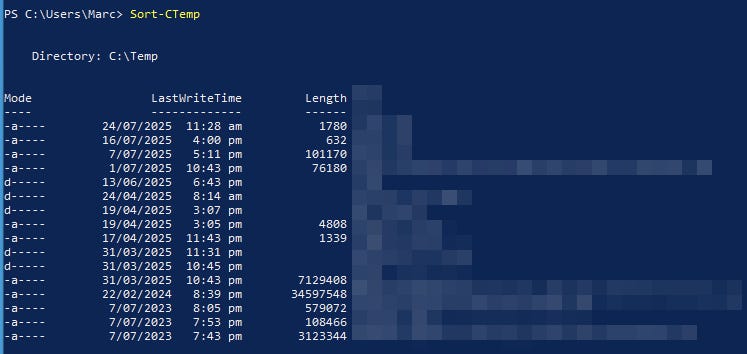
Well done, you’ve created your first function! Let’s step it up a notch
Scripts vs Functions
Let’s start with a quick explanation of what I didn’t understand - the difference between a script, and a function. Here’s a more complex script that we’re going to turn into a function:
# PowerShell Script to Send an Email via SMTP

# Define message parameters
$Subject = "Your subject here"
$Body = "Optional body content"

# Define SMTP settings
$SMTPServer = "smtp.example.com"
$Port = 25
$EmailFrom  = "sender@example.com"
$EmailTo    = "recipient@example.com"

# Build the parameter set dynamically
$params = @{
    SmtpServer = $SMTPServer
    To         = $EmailTo
    From       = $EmailFrom
    Subject    = $Subject
    Port       = $Port
    UseSsl     = $true
}

# Send the email
Send-MailMessage @params
Subject and Body are defined, these might change per email.
SMTP settings include the server, port, sender, and recipient, these are less likely to change.
Then it squeezes all of that information into $params and then sends the email using that information.
Why might you want this to be a function?
As we saw with Sort-CTemp, a function is a repeatable command. We can call back on a script that does lots of work, with only a few key presses. If you store your functions in your profile, then you can use functions inside other scripts. Let’s explore that.
For the above script, the function looks like this:
function Send-CustomMail {
    param (
        [string]$Body,
        [Parameter(Mandatory)]
        [string]$Subject
    )

    $SMTPServer = "smtp.example.com"
    $Port = 25
    $EmailFrom  = "sender@example.com"
    $EmailTo    = "recipient@example.com"
    $null = $Body

    # Build the parameter set dynamically
    $params = @{
        SmtpServer = $SMTPServer
        To         = $EmailTo
        From       = $EmailFrom
        Subject    = $Subject
        Port       = $Port
        UseSsl     = $true
    }

    Send-MailMessage @params
}
That means you can run all sorts of different scripts - checking for apps installed, checking for a file, trying an installation etc. Then gather the information you need into a variable, and send that information to yourself or someone else. If the “Sort-CTemp” function we created earlier was a large script doing lots of work, we can quickly grab and assess that information by running 2 functions back to back:
$Content = Sort-CTemp
$Body = $Content | out-string
Send-CustomMail -Body $Content -Subject "CTemp"
The above assigns the output of our “Sort-CTemp” to the variable $Content. Because $Content is an array, we need to convert it to a string for it to go through an email. We do that by “piping” it to out-string. Then we run the Send-CustomMail command, we populate the body with variable $Body.
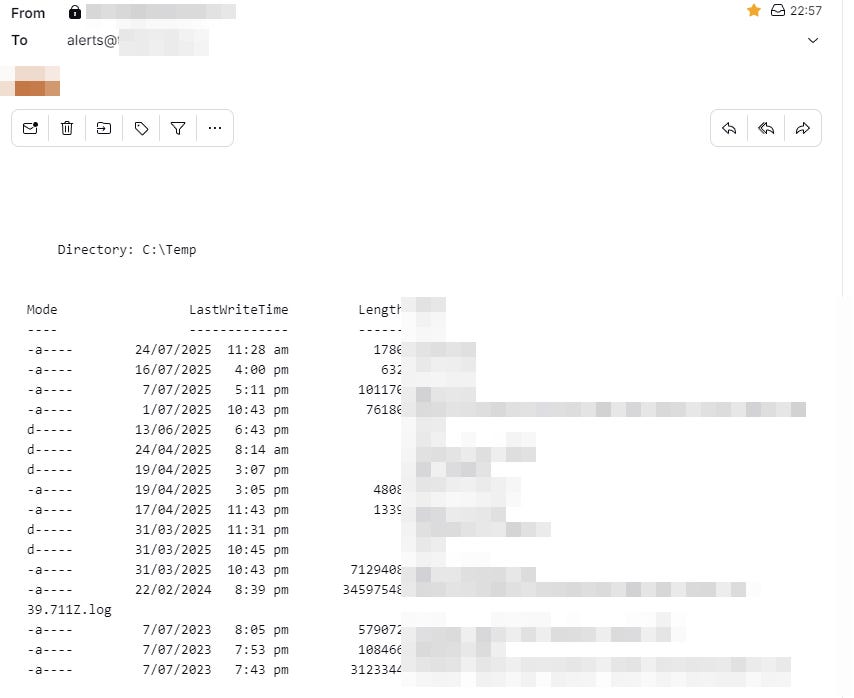
Hit enter and you’ll receive an email with the contents of your C:\Temp directory, sorted by newest:
Easy