
Configuring your PowerShell profile
Increasing your efficiency as soon as PS is open

Here’s my first post for a long time, I have no one to blame but myself.
My previous PowerShell post on Test-NetConnection (Found here) seems to have been my most popular, so I’m continuing on the same theme. I made a quick mention of the $PROFILE configuration file in my post on PowerShell functions, so let’s do a deeper dive on that file.
The Basics
Your PowerShell profile is a startup script for PowerShell. It’s a configuration file of settings to apply, commands to run and settings to configure for your personal PowerShell instance. Reading that line you might think “…so?”, but lets get into it.
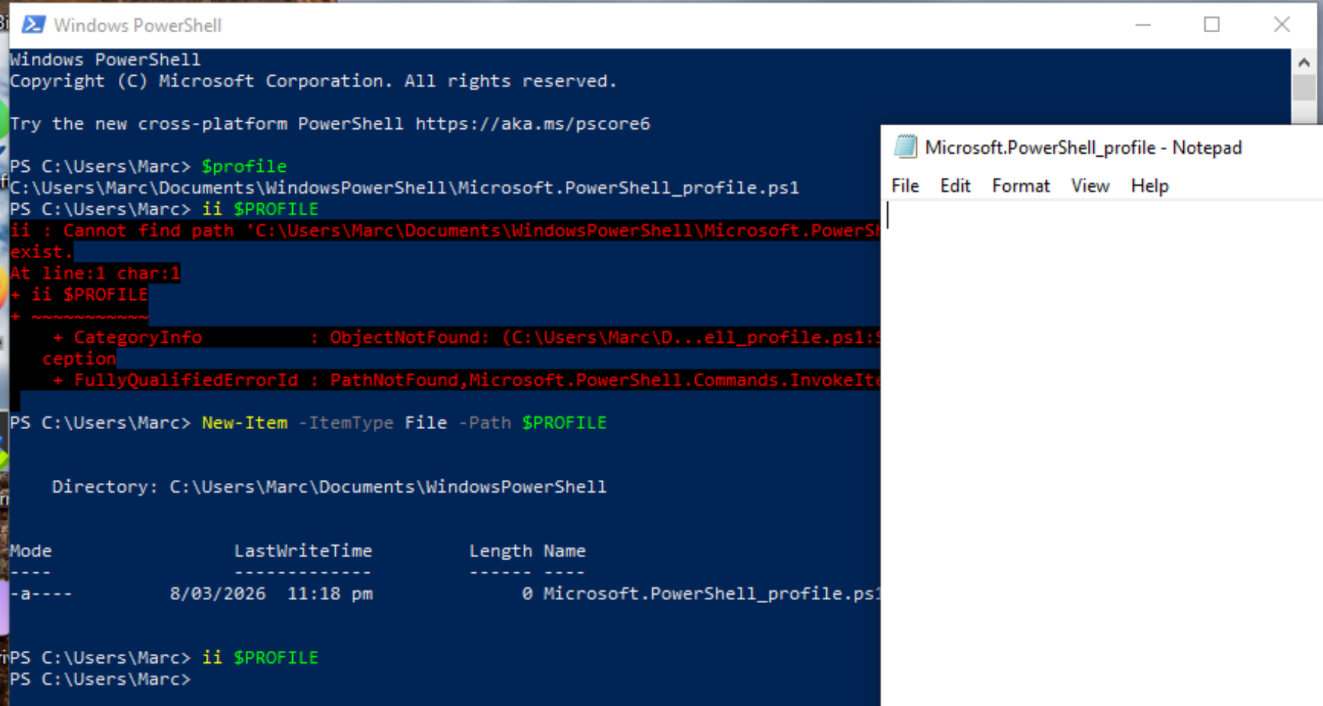
In PowerShell, type $PROFILE and hit enter. That’s going to give you the file-path to your PowerShell profile file. Or, skip the middle man and type “ii $PROFILE” and it will open, probably in Notepad.
(ii is an alias for invoke-item)
If you get an error message, you may not have a profile file yet. To create one, run the below:
New-Item -ItemType File -Path $PROFILEBasic safety tip: Never run a script from a website unless you know what it’s doing. “a website” includes LLMs.
Setting up a profile
Ok, so we’ve got our profile file created and it’s open and ready to go. Every day at work, I run commands across many servers. Sometimes it’s a bunch of SQL servers, or all the non-prod servers, or even every server at once. It’s annoying to do an AD search in PowerShell for all the servers, and assign it to a variable before I can do the things I want to do. I can add that command to my $PROFILE, meaning each time I start PowerShell, it will populate a variable with all servers:
$AllServers = (Get-ADComputer -Searchbase "OU=domain,OU=co,OU=nz" -Filter 'OperatingSystem -like "*server*"').NameEasy. Now every time I open PowerShell, it will run the above command and assign a list of all servers to $AllServers. Save the profile file once the command is added, and then reopen PowerShell. If you run $AllServers, you should now have a list of your server hostnames.
Please consider the impact of your profile commands on the environment you’re running them in, and the delay it may cause in PowerShell opening.
Let’s keep building on our profile page. To make any function we write available for day-to-day use, it needs added to the $PROFILE. To do that, copy and paste the function code and add it to the next lines. I’ve copied the function I created in my function post;
$AllServers = (Get-ADComputer -Searchbase "OU=domain,OU=co,OU=nz" -Filter 'OperatingSystem -like "*server*"').Name

# PowerShell Script to Send an Email via SMTP

# Define message parameters
$Subject = "Your subject here"
$Body = "Optional body content"

# Define SMTP settings
$SMTPServer = "smtp.example.com"
$Port = 25
$EmailFrom  = "sender@example.com"
$EmailTo    = "recipient@example.com"

# Build the parameter set dynamically
$params = @{
    SmtpServer = $SMTPServer
    To         = $EmailTo
    From       = $EmailFrom
    Subject    = $Subject
    Port       = $Port
    UseSsl     = $true
}

# Send the email
Send-MailMessage @params
As you can see, it’s just a copy paste. You can add functions, single lines of code etc just one after the other. As I mentioned earlier, consider the commands you’re running and the impact it may have on your environment. They will run every time you open PowerShell, so keep that in mind.
The Profile file allows you to quickly and efficiently populate variables, add commands and functions to have them ready to go in every PowerShell session.
As you progress, you may wish to start investigating versioning using Git, and sharing that Profile across multiple systems or users. More on that later :)